7. Exporting Your Data
7.1. Exporting Networks as Static Images
Cytoscape Web can generate publication-quality images from network views.
To export a network as image, select Data → Export → Network to Image…. The Export Network Image dialog will open and look like the image below:
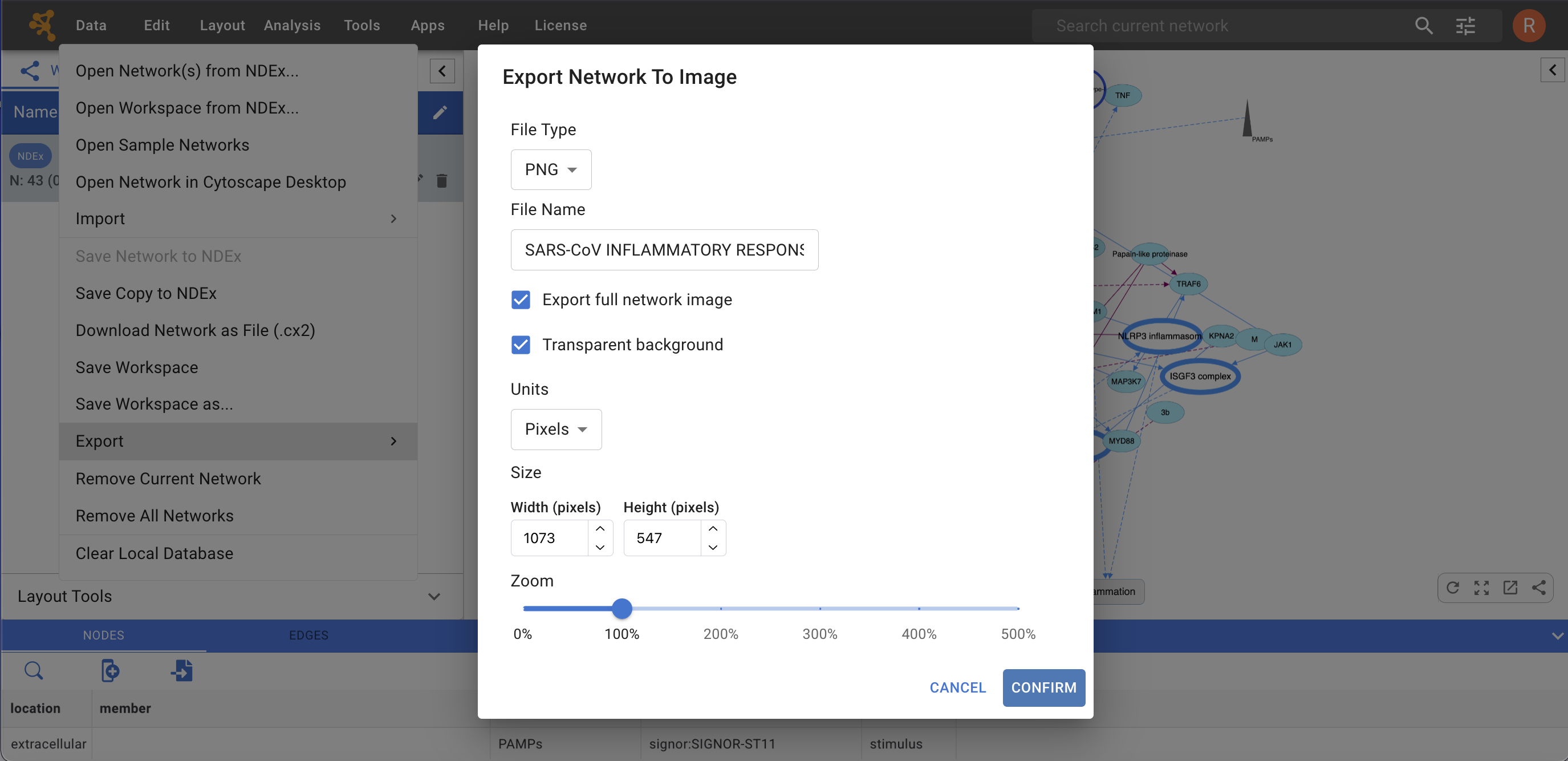
You can choose to export the current network view into the following formats: PNG, PDF or SVG.
The image export dialog has a variable number of options based on the file format selected, with File Type, File Name and Export full network image always being selectable.
The PNG format has also options for scaling and background.
PDF has options for paper size.
Once you have selected the appropriate options, click CONFIRM in the bottom right corner of the dialog window.
Finally, choose the destination folder and save your network’s image file.
The option to Export full network image is checked by default; if you uncheck this option, the exported image will only contain what is displayed in the Network View window. So, if you zoom in to display a portion of your network, the exported image will only contain that portion.
NOTE: We recommend using PDF for publications because it is a standard vector graphics format, and it is easy to edit in other applications such as Adobe Illustrator.